Connection from the outer world
The servers hosted by the CISM are located on a sub-network that is not reachable directly from outside the network of the university. That does not prevent you from accessing them from anywhere, provided you use an SSH gateway.
The SSH gateways allow you to access resources that are available only inside the university network eventhough you are home or abroad. With the gateway, you can connect to the CÉCI clusters, to Manneback, to the interactive machines, or to the storage machines that are normally only accessible when you are connected to the university network (wired or wifi ).
There are two gateways that you can use, depending on the account you have.
Note
You do not need to be abroad or home to use and test the connection to the gateway. Make sure it all works through the gateway when you are in your office before attempting to connect from home.
- CISM account: use
gwcism.cism.ucl.ac.be - CÉCI account: use
gwceci.cism.ucl.ac.be
Please note the following restrictions in the use of the gateways:
- the CÉCI gateway can only be used as a jump host, you will not be able to SSH to it directly.
- the CISM gateway can only reach the CISM clusters, mass storage and interactive machines.
To know how to configure the CÉCI gateway, please refer to the CÉCI documentation:
The remaining of this section will focus on gwcism and its use with the interactive servers and mass storage servers.
Using the command line
A direct way of specifying a gateway is to use the -J option of ssh:
ssh -X -J <my_cism_login>@gwcism.cism.ucl.ac.be <my_cism_login>@<machine_name>.cism.ucl.ac.be
Make sure to replace the parts in <my_cism_login> with your actual login and <machine_name> with the name of the computer you want to connect to.
As that can become cumbersome to type, the best is to configure the SSH client to remember that information for us. That is done in the ~/.ssh/config file.
If that file does not exist yet, you can create it. Then, populate it with the following content
Host gwcism
  Hostname gwcism.cism.ucl.ac.be
  User <my_cism_login>

Host <machine_name>
  Hostname <machine_name>.cism.ucl.ac.be
  User <my_cism_login>
  ProxyJump gwcism
Make sure to replace all the items in angle brackets <>. You can copy the section Host <machine_name> section for all the servers you want to connect to:
Host gwcism
  Hostname gwcism.cism.ucl.ac.be
  User <my_cism_login>

Host storage
  Hostname storage.cism.ucl.ac.be
  User <my_cism_login>
  ProxyJump gwcism
When that is configured, you can then connect to the server using only its shortname, like this for storage for instance:
ssh storage
Windows alternative: MobaXTerm
First create a session as before to connect to the server you want. But before you click on OK, click the Advanced SSH settings tab and choose the Network settings tab.
Then click on “SSH gateway (jump host)”
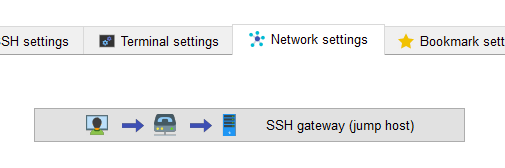
Enter gwcism.cism.ucl.ac.be in the Gateway host text box, your CISM login in the Username text box, and 22 in the Port text box.
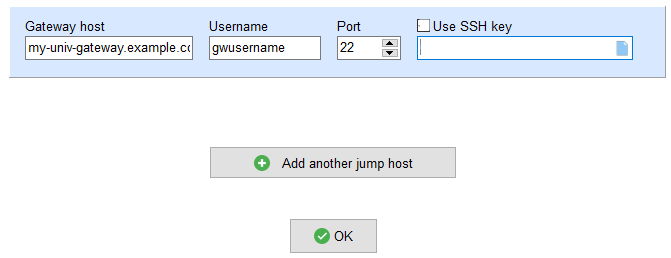
Press the OK button and you should be prompted for your password. MobaXTerm will ask you if it should remeber it.
If everything was properly configured, you should now be connected.
GUI file manager
Unfortunately, FileZilla cannot directly use an SSH gateway. It can use a SOCK proxy or an SSH tunnel though, that is less easy to configure. If you want to use FileZilla from home or abroad, the best option is to use the unversity VPN.