File encryption
If you wish or need to encrypt the data that you are storing on the CISM infrastructure, the Cryptomator software can help you. Cryptomator is designed to work with local and external storage, which can be a cloud-like storage, such as Nextcloud, and One Drive, or with a Samba mount, or even a USB disk.
The encrypted data is stored in a directory of your choice (called vault), and protected by a password that you choose. To share the data, you will need to :
- make sure the directory with the encrypted data is accessible by the recipients ;
- share the secret password with the recipients.
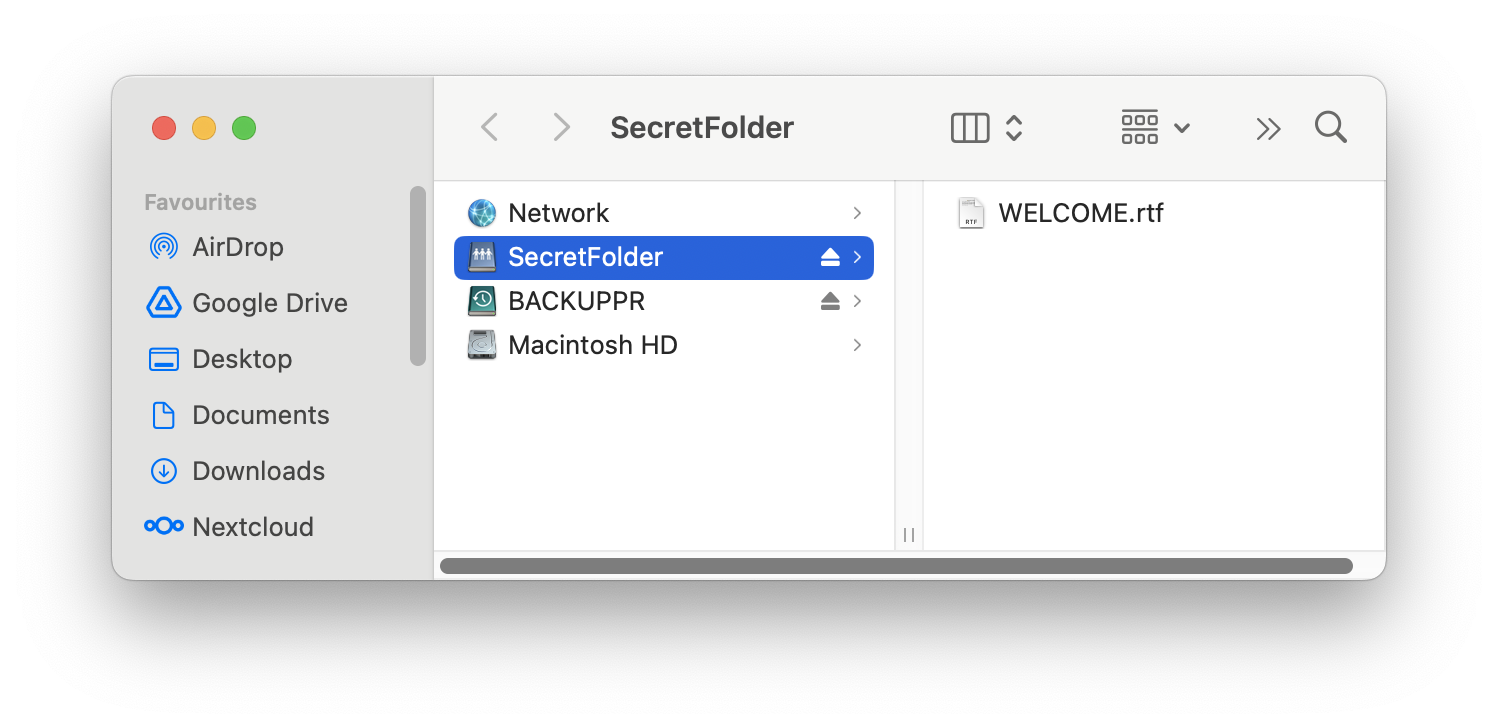
With the secret password, you and the recipients can unlock the vault. It then appears as an additional disk in your laptop. Any file that you copy in that disk is encrypted on the fly and stored in the vault. The synchronisation of the vault is take care of by the technology used to share the data (cloud drive, network drive, etc.).
Whenever you stop working, you will lock the vault and from there, the additional disk disappear and data only exist in encrypted form on your computer. Cryptomator is open-source and free in its desktop version. A licence is necessary for the mobile (Android, iOS) version. An installed for every platform can be downloaded from the Cryptomator website.
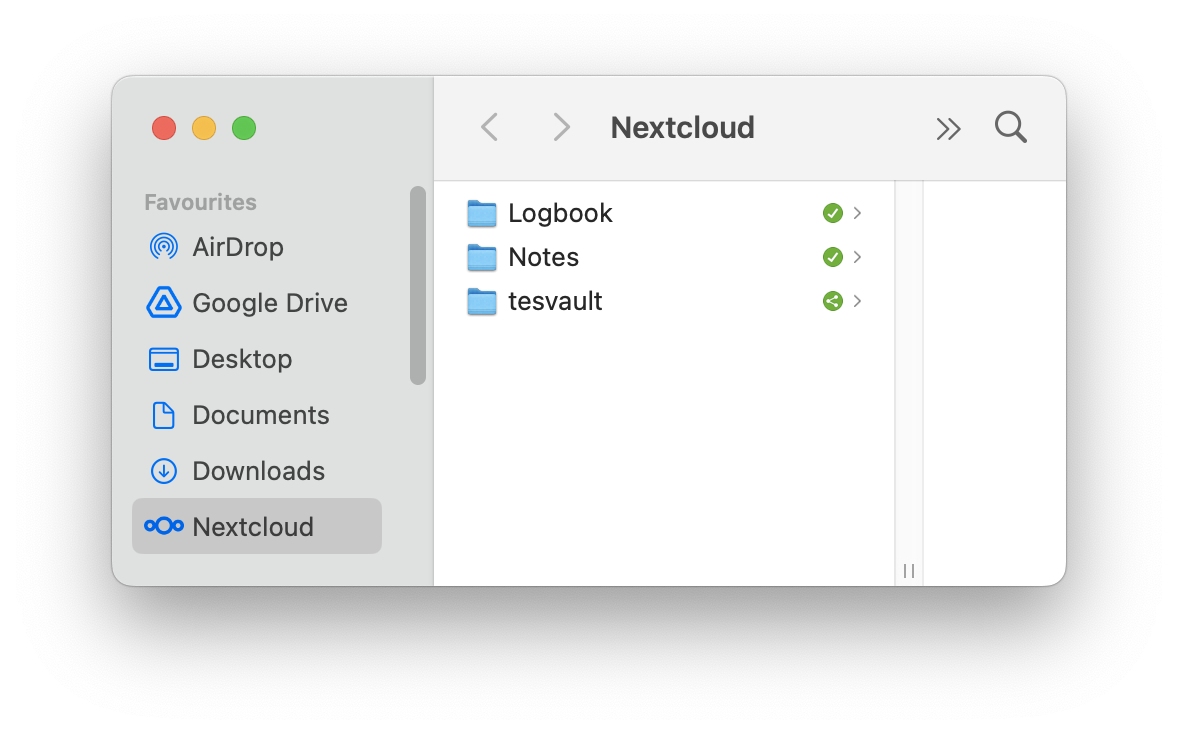
Here follows an example use with Nextcloud. The vault will be stored in the Nextcloud folder “testvault” and will be named “SecretFolder”.
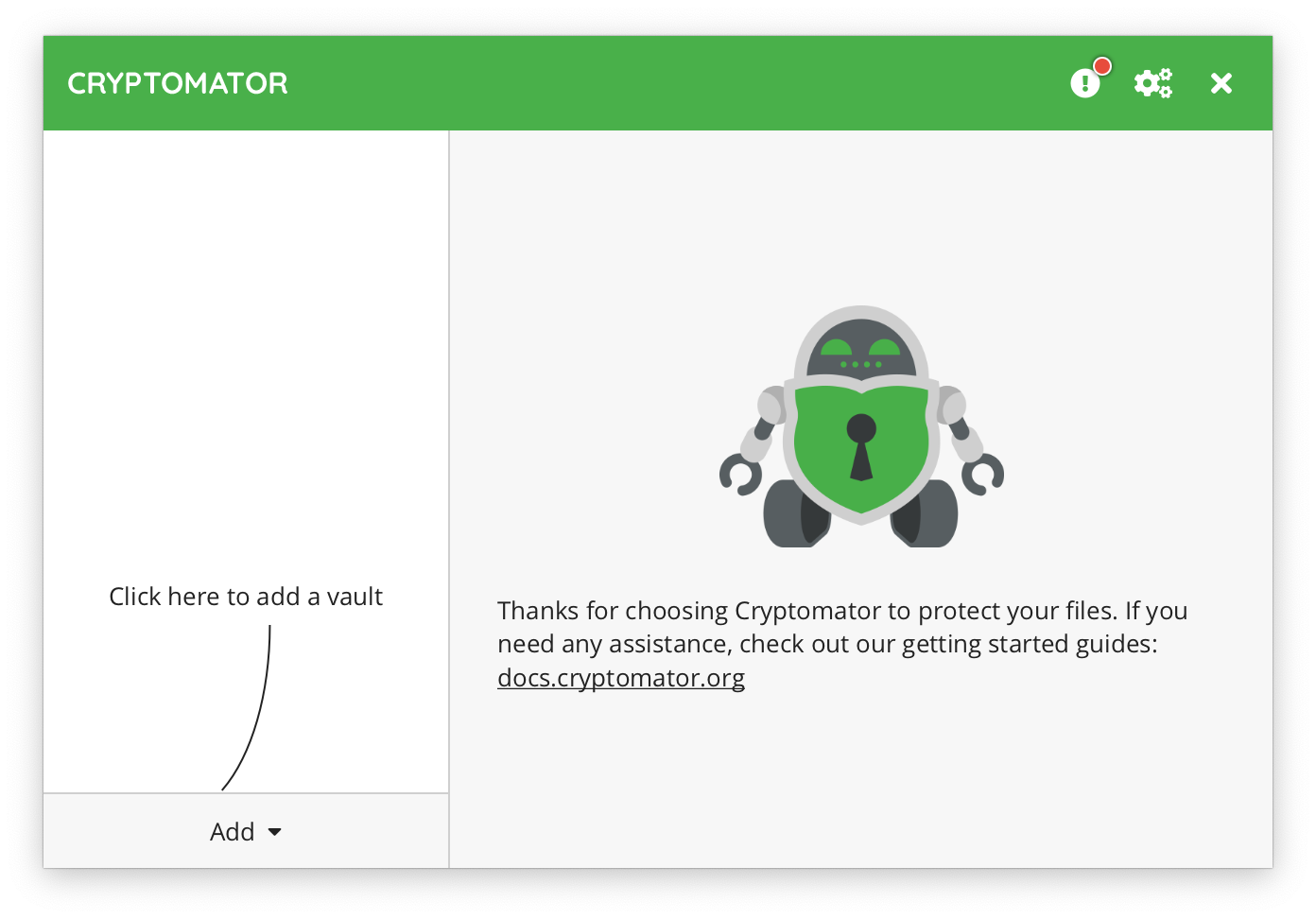
Once installed, you can start Cryptomator ; you will see the main window.
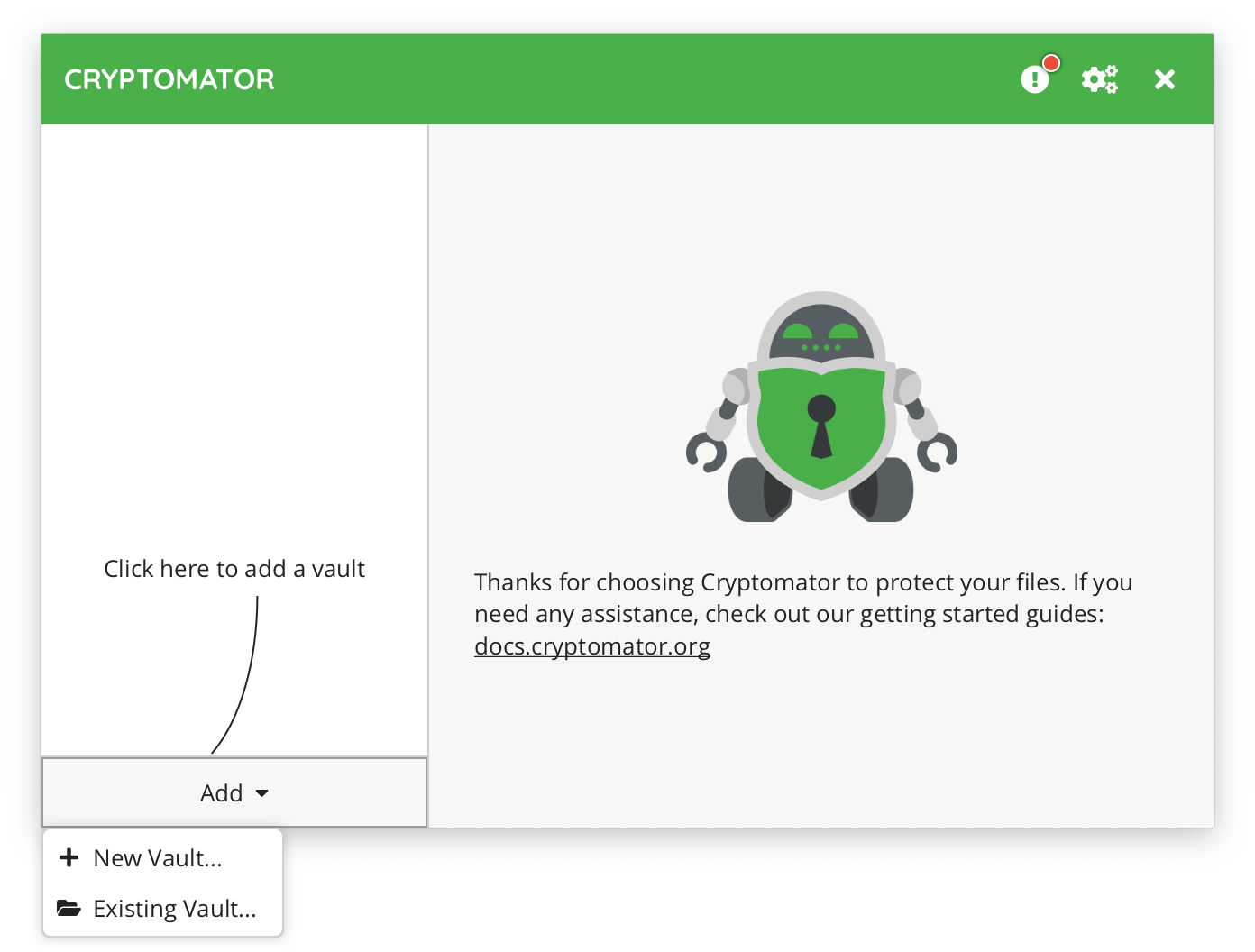
Click Add and choose New vault.
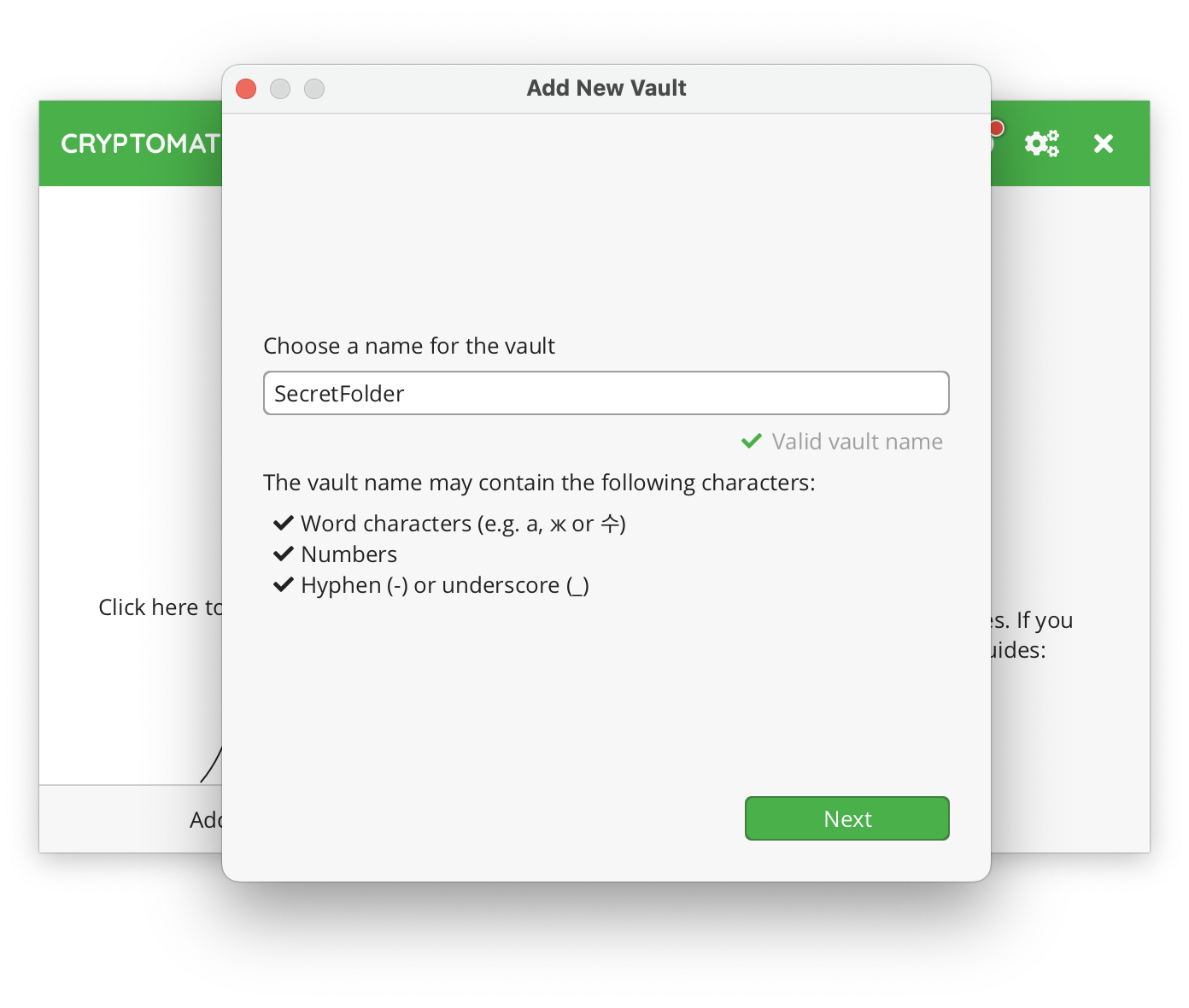
Choose a name for the vault, for instance SecretFolder
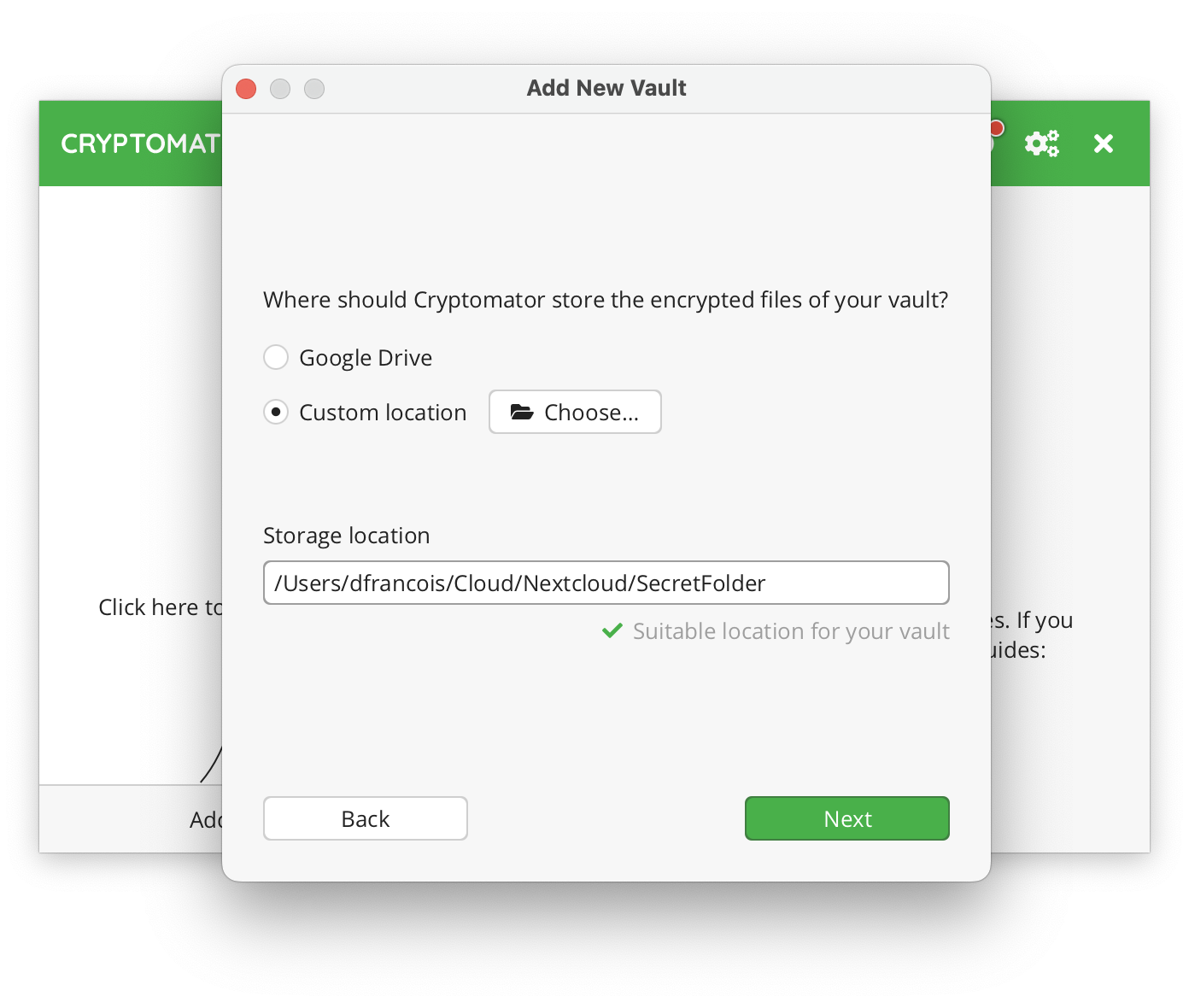
And choose a location using the Choose button, for instance here in the Nextcloud folder
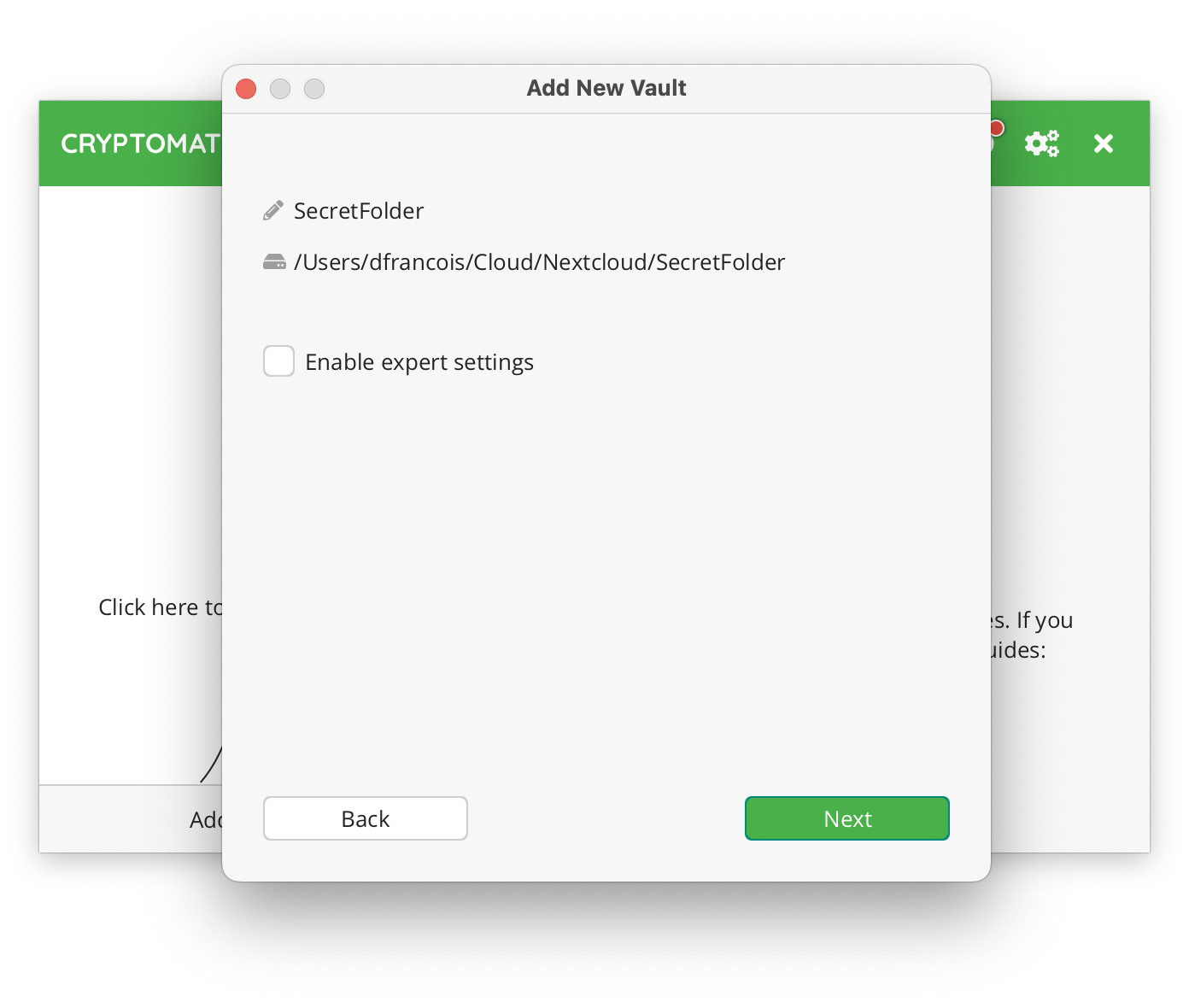
Click Next
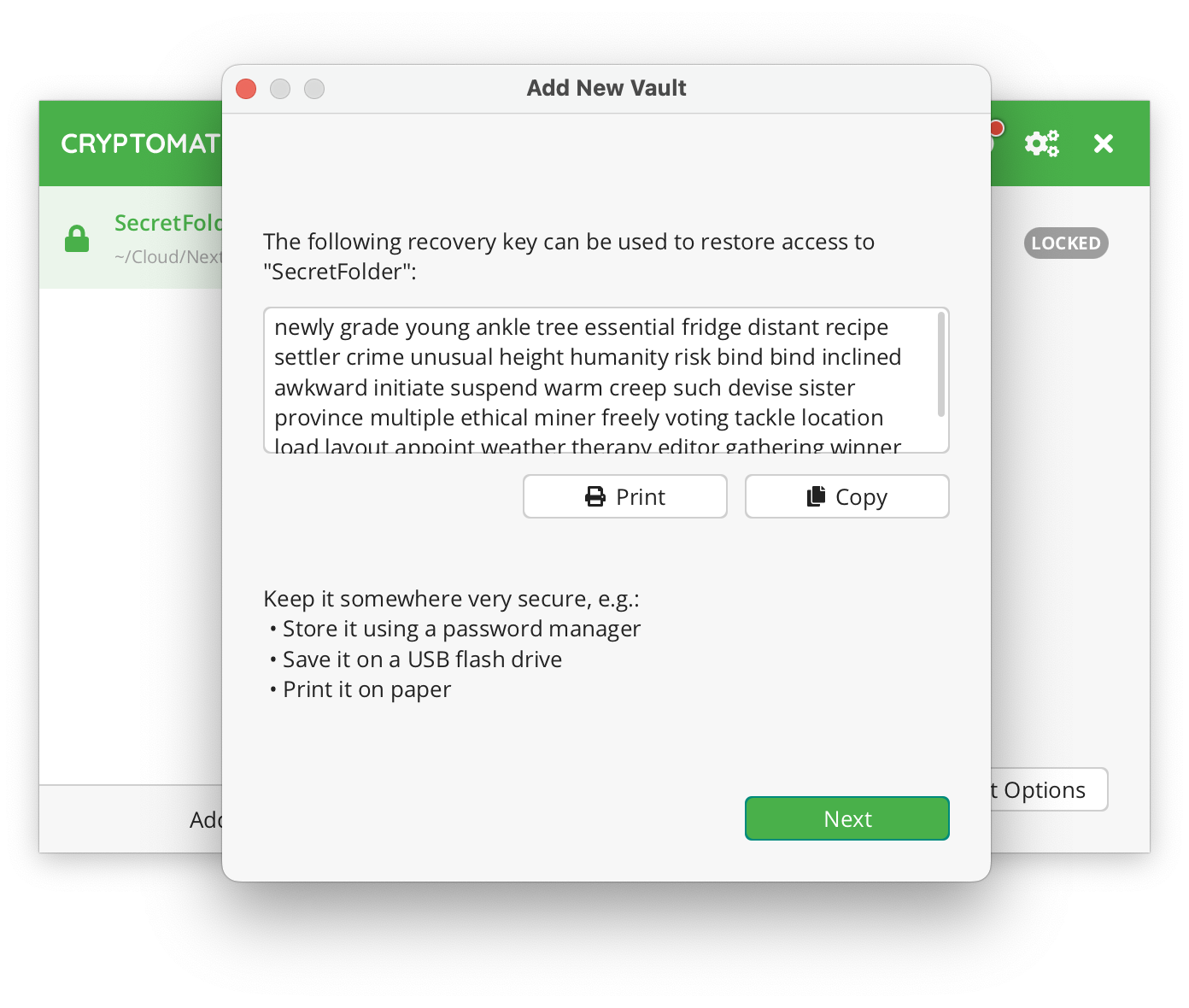
and choose a password. Cryptomator offers to generate a recovery key that can be used to decrypt the vault in case you loose the password.

Cryptomator lists good practices to store that recovery key.
You can now Unlock the vault.

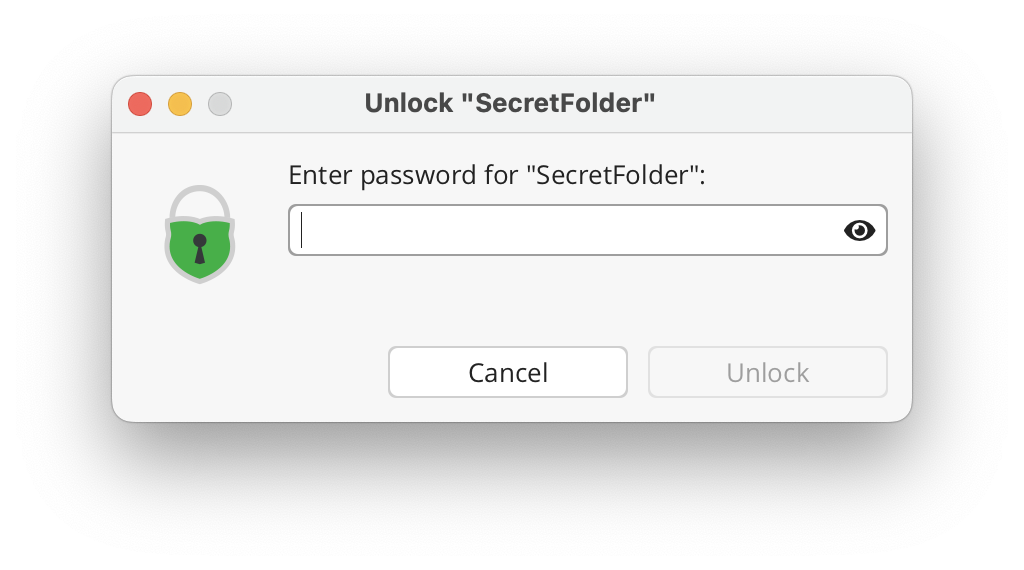
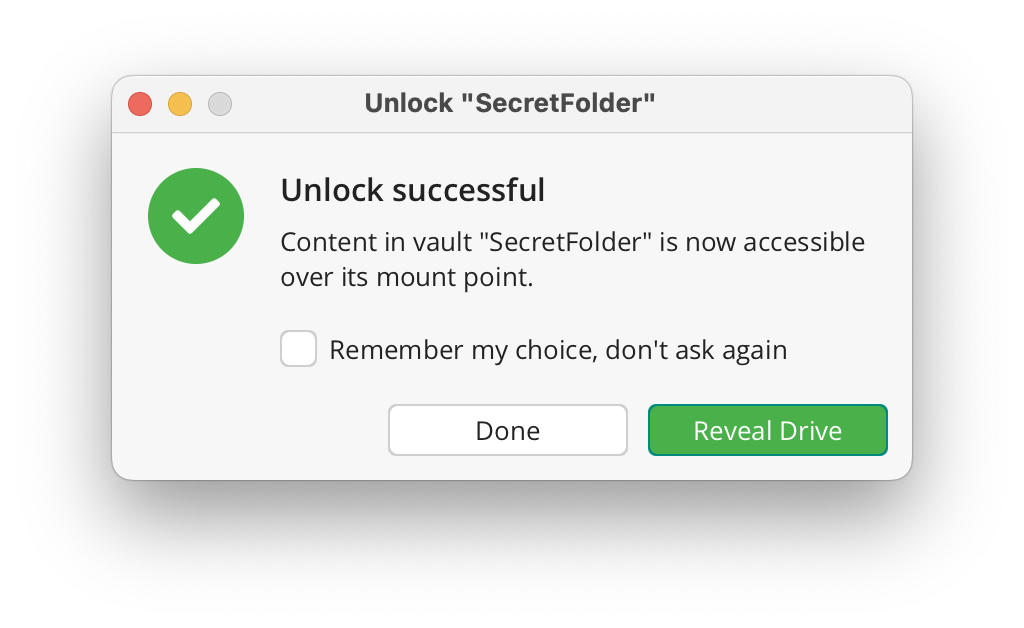
You must provide the secret password, and then
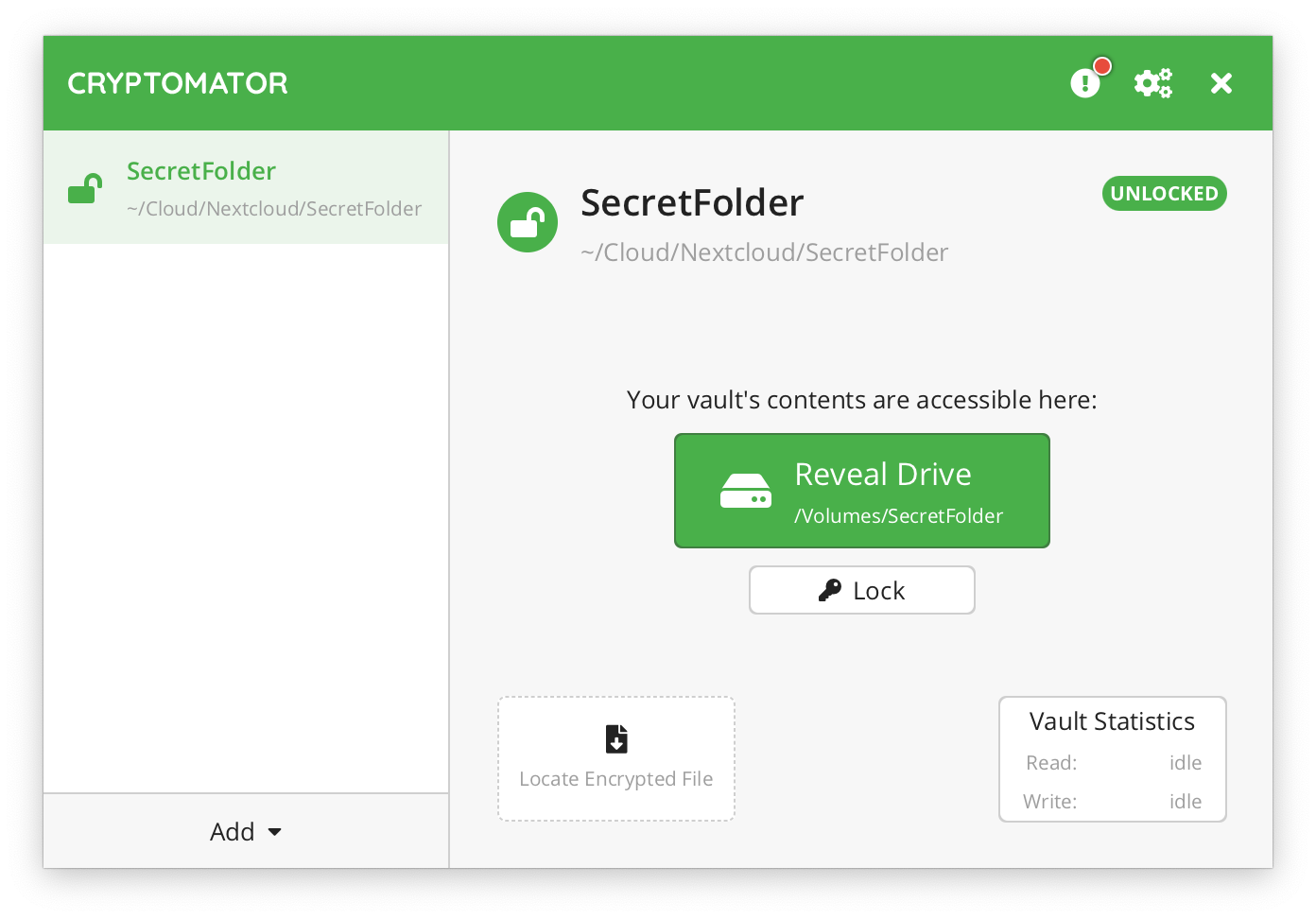
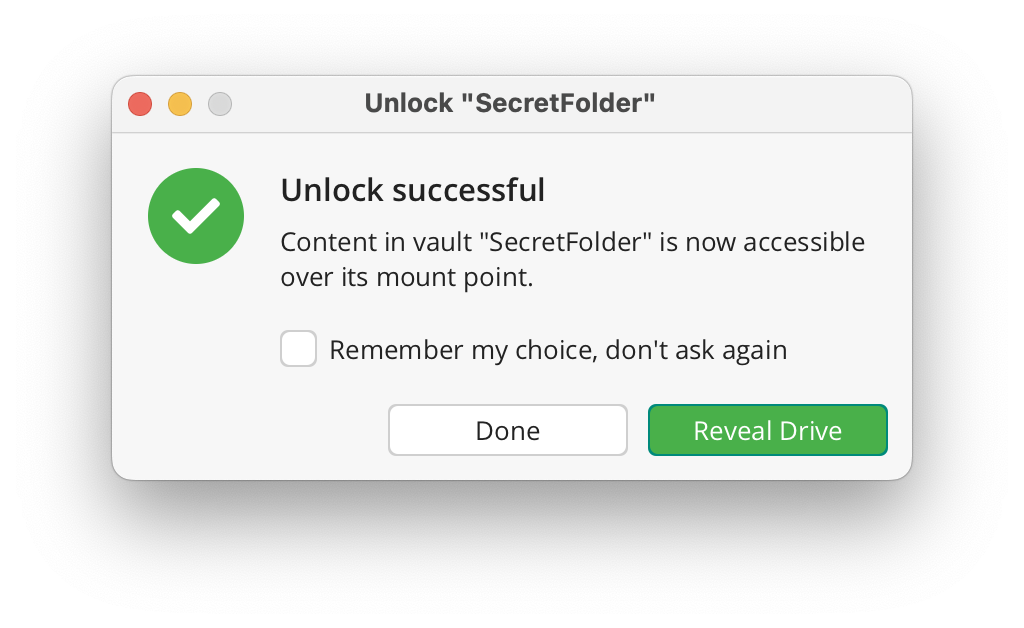
you can Reveal the additional drive:
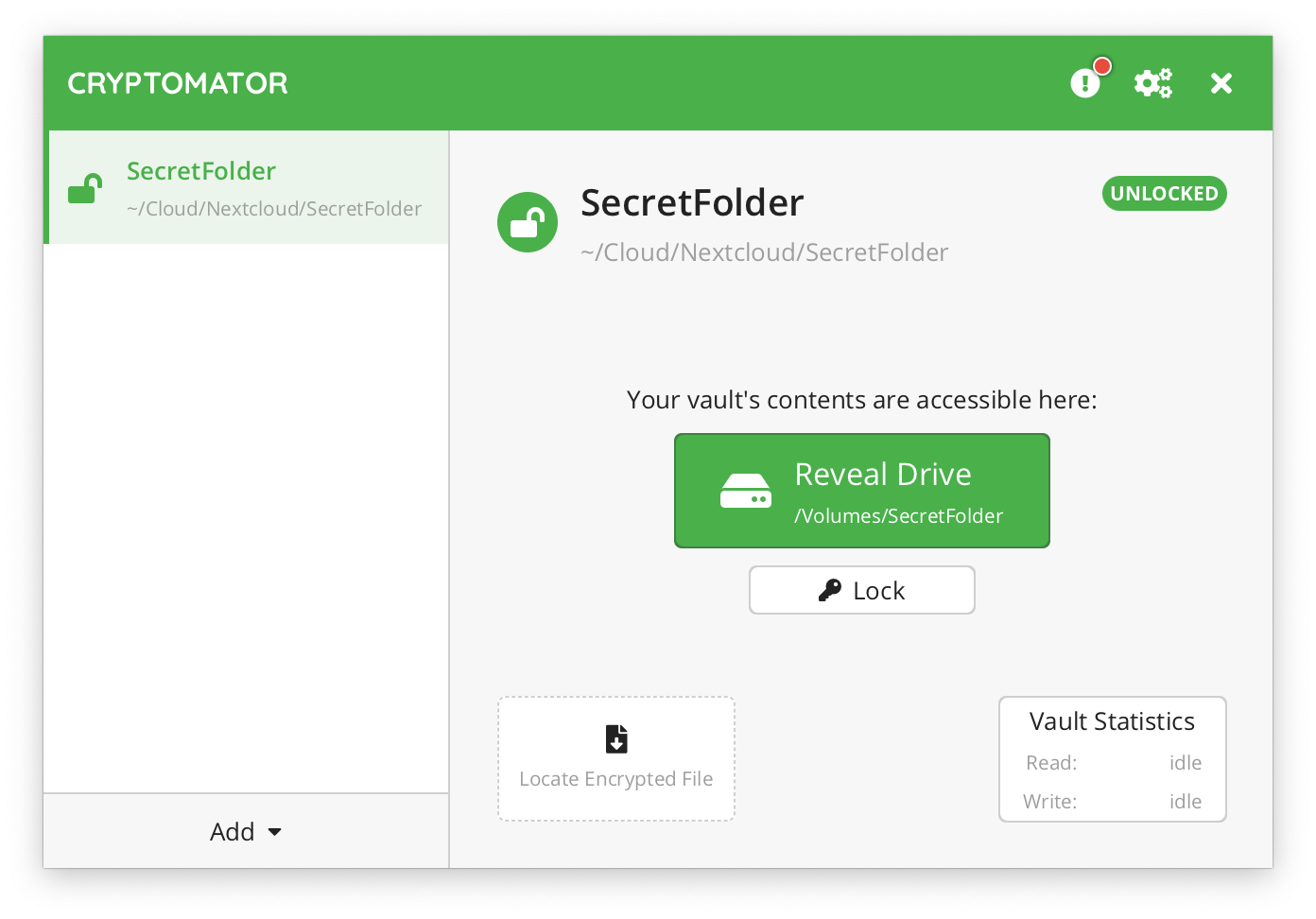
In the Cryptomator window, the vault is shown with an open lock. You have there the option to reveal the drive or lock the vault.
If you lock the vault, it is shown with a closed lock in the list
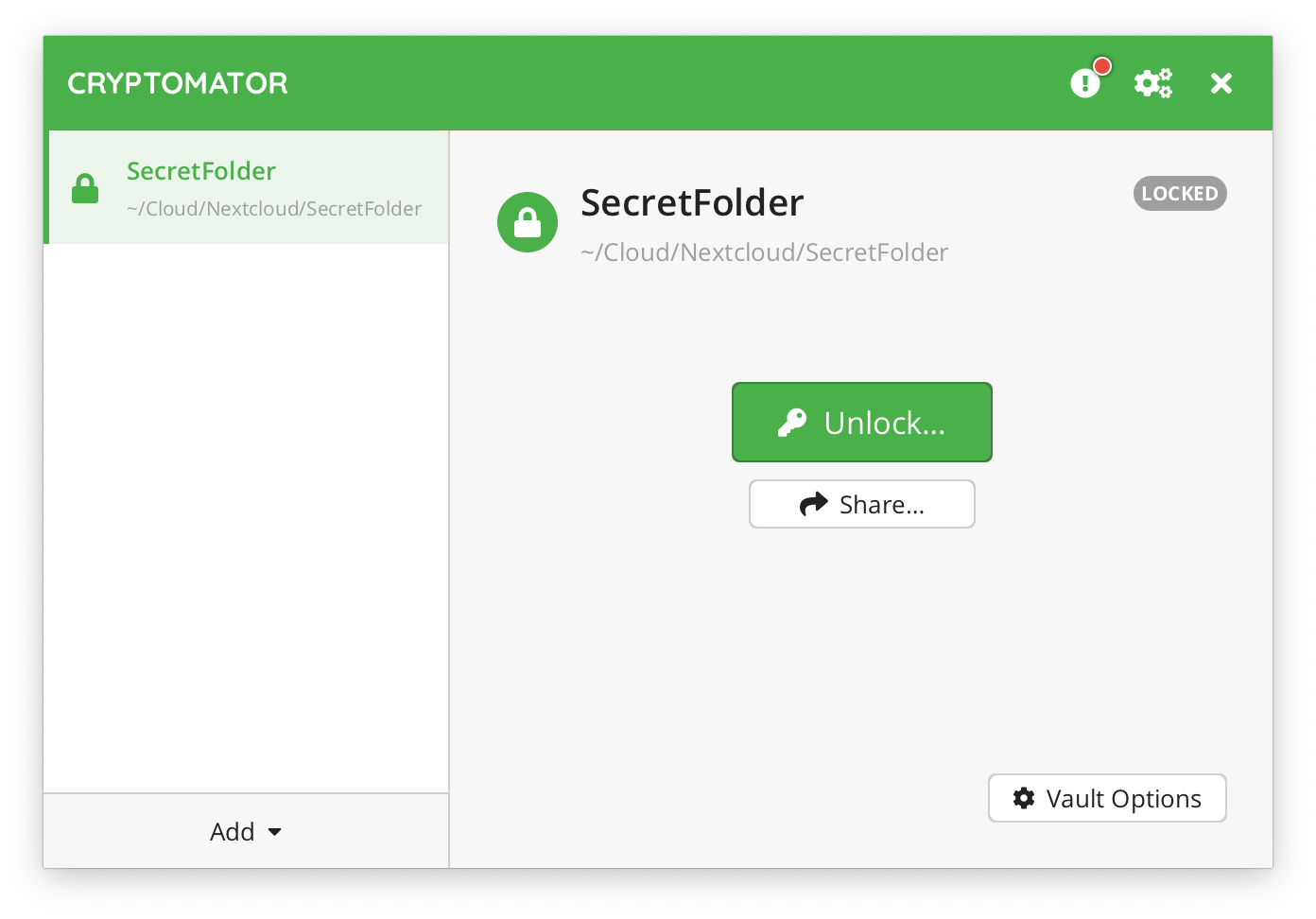
and the additional drive disappears.
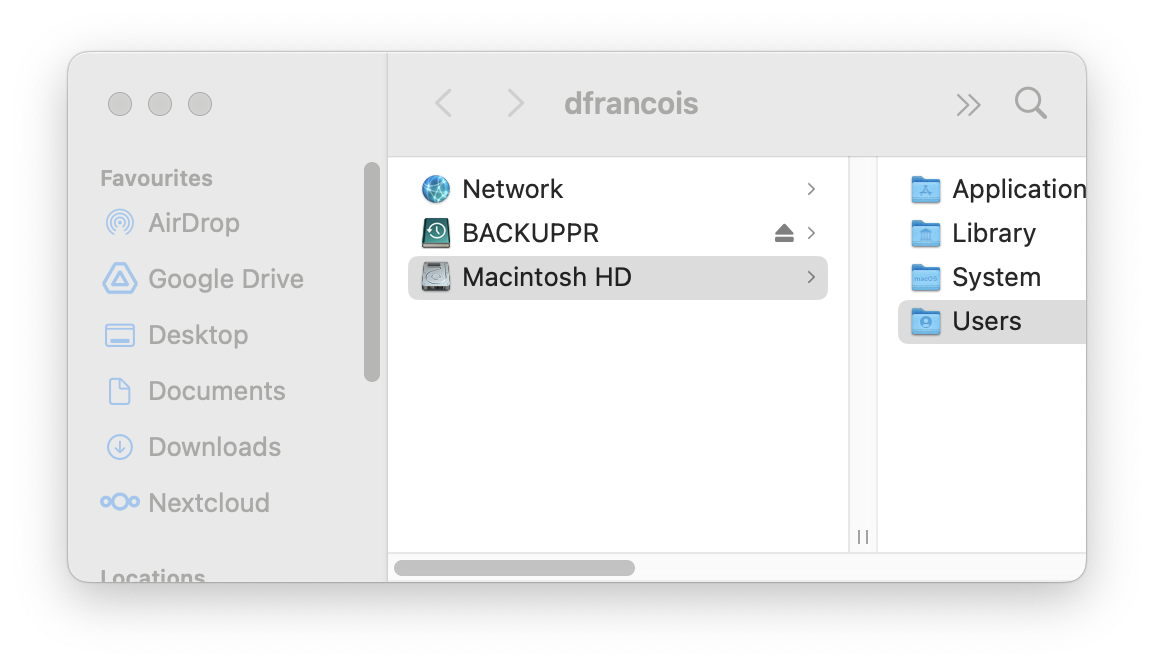
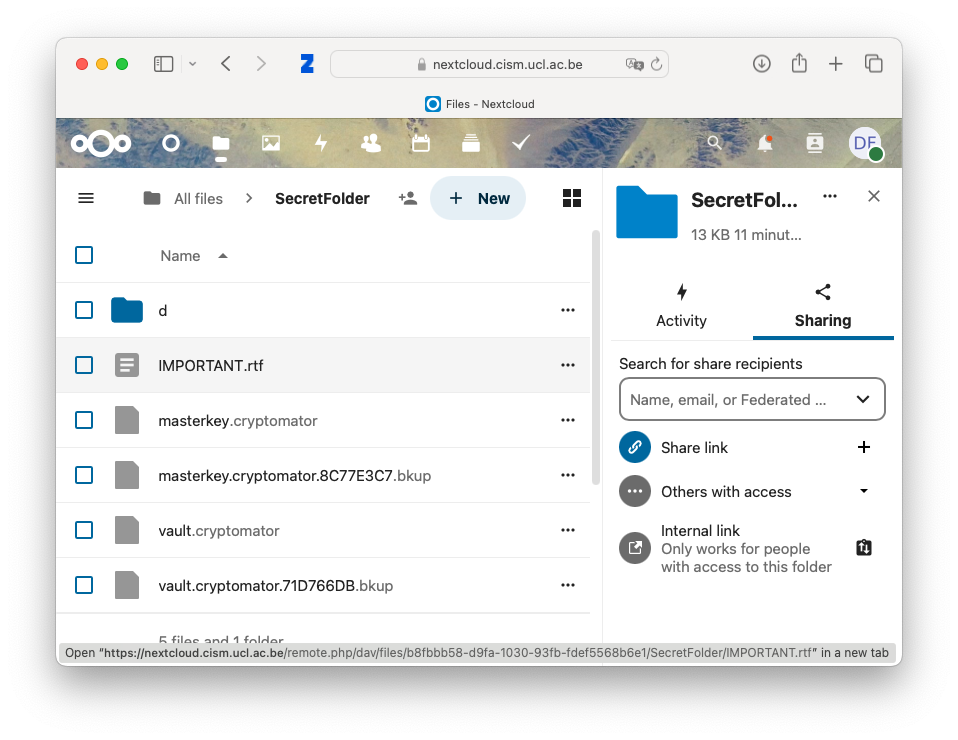
Note that in the Nextcloud web interface, you can only see the encrypted vault. The clear-text files never reach the Nextcloud server. Here, the vault is shared in Nextcloud with another user.
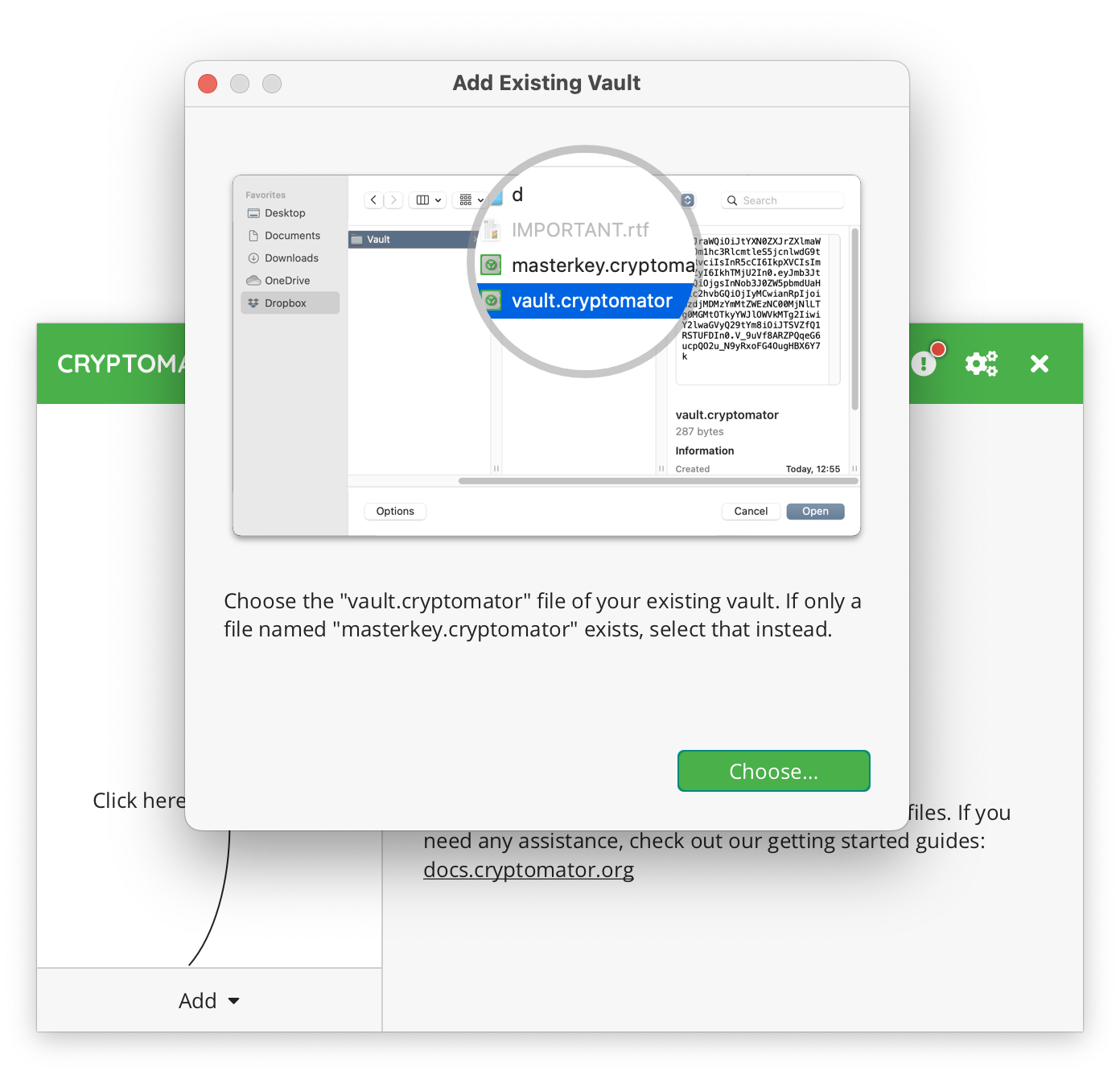
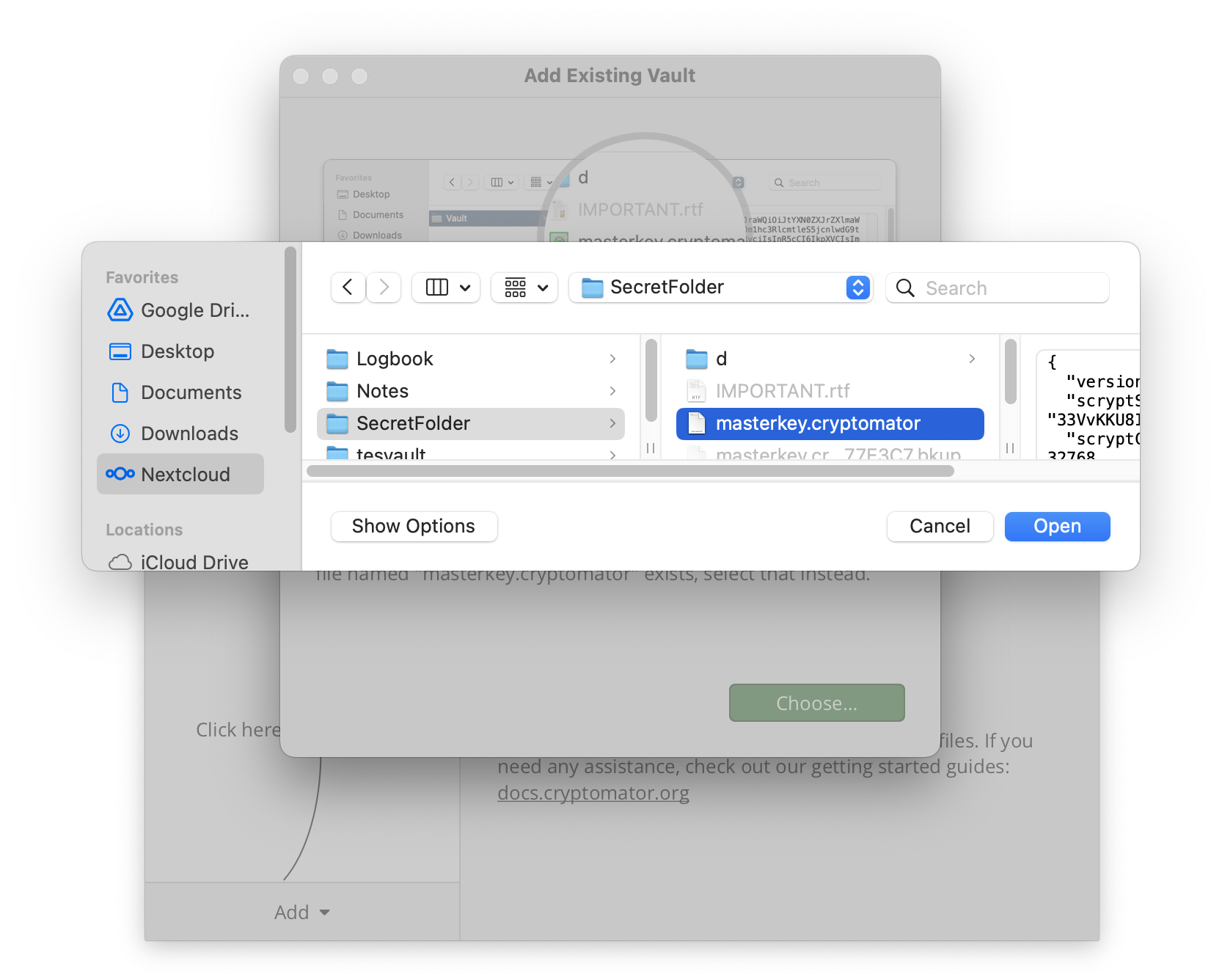
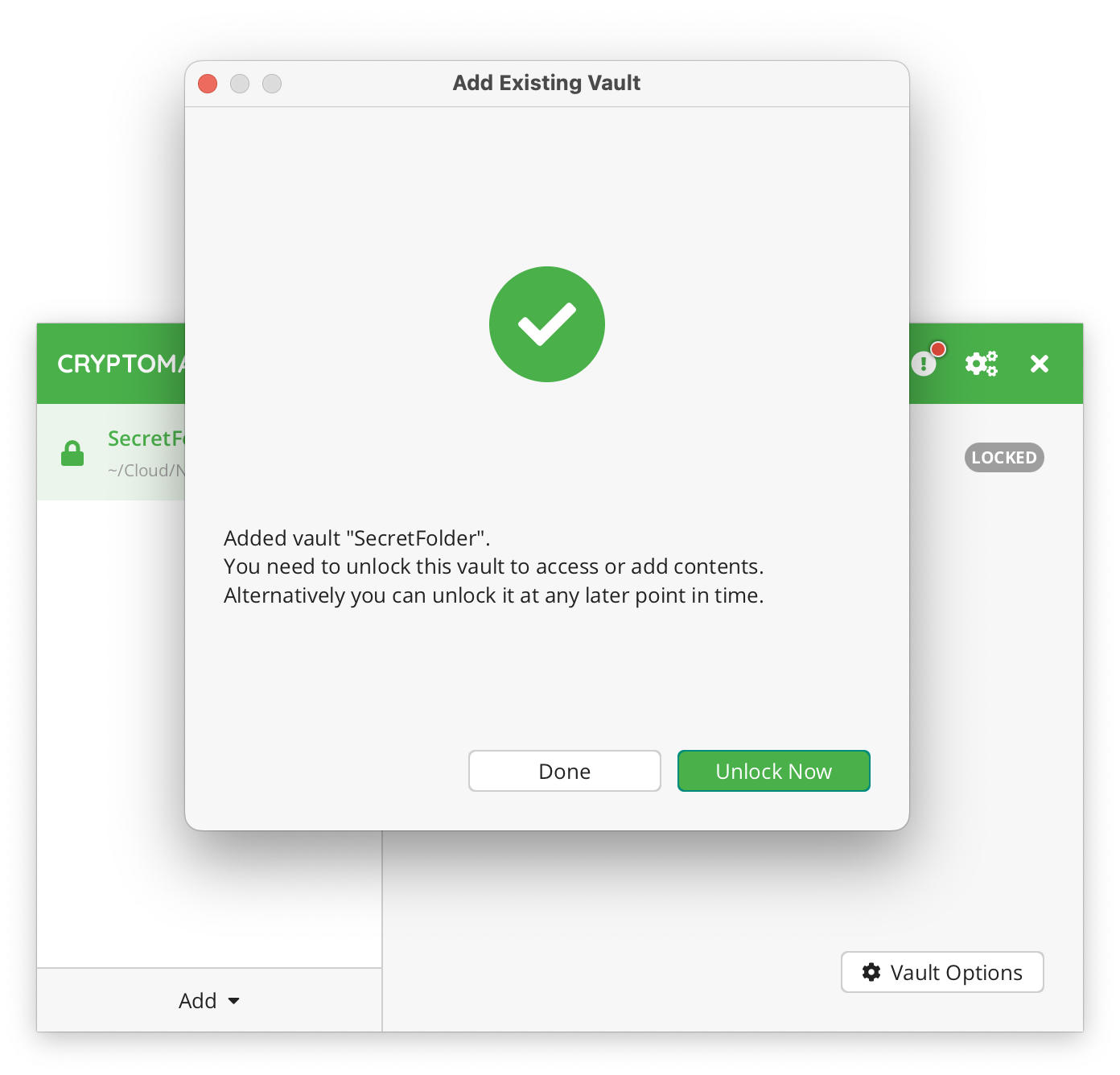
That other user can install Cryptomator, and once the Nextcloud folder is configured, open the Existing vault:
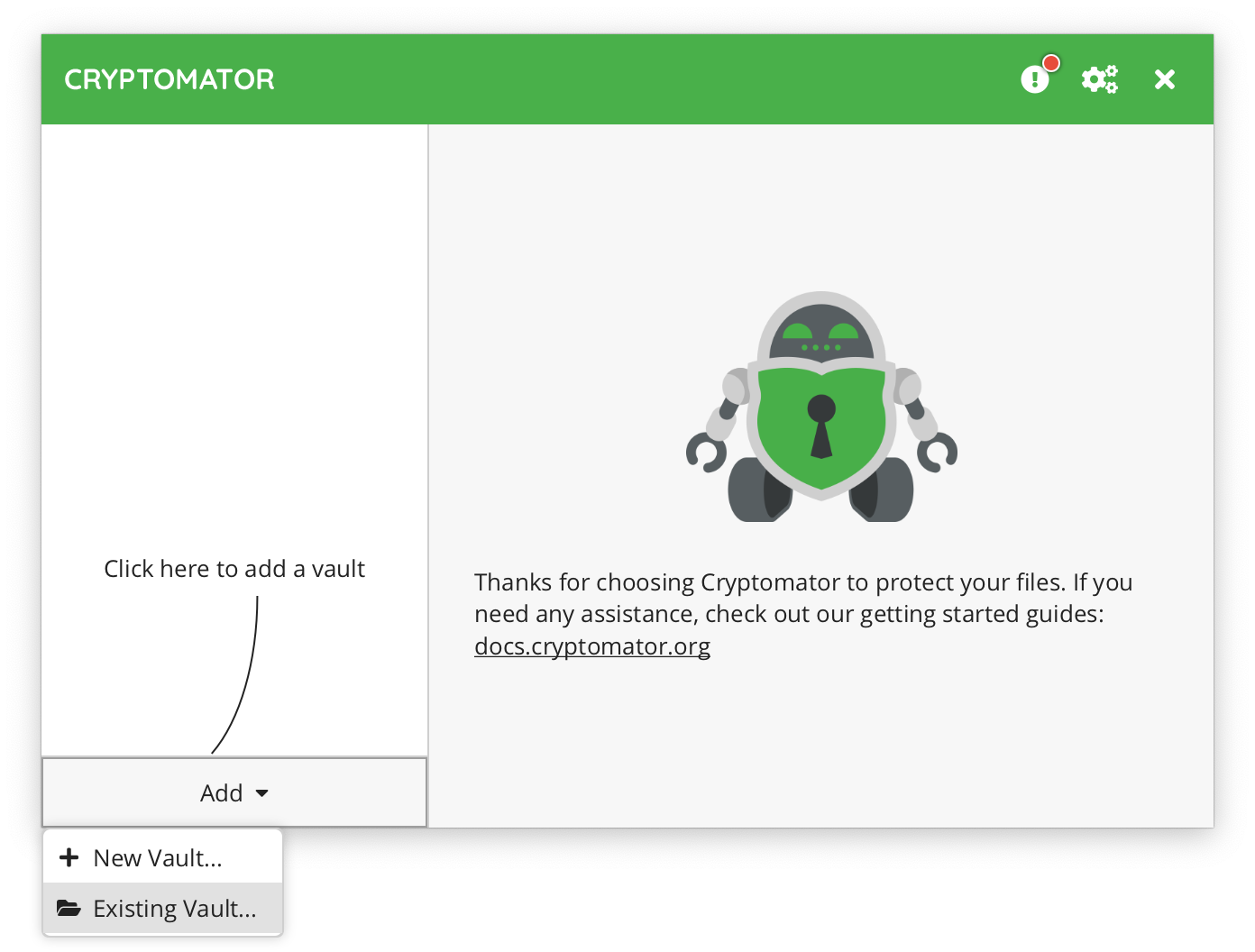
To do that, they will need to locate the vault.cryptomator file in the Nextcloud folder SecretFolder
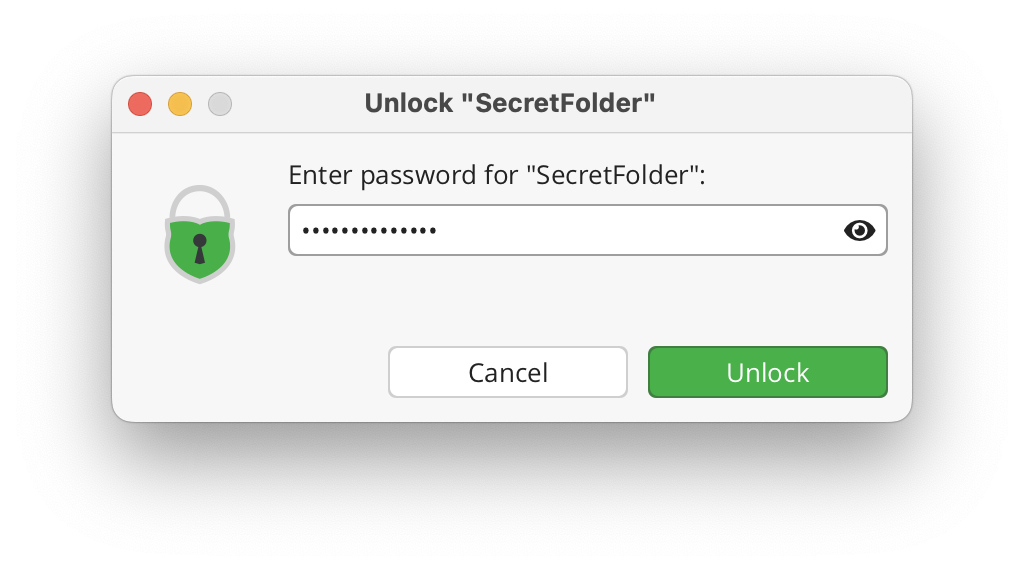
They must then provide the secret password
They can now Reveal the drive.
and Lock the vault when they are done working.