Secure file transfer
The usual way is to use the commands scp, sftp, and/or rsync. You
can always use any graphical user interface you like as long as it uses SCP or
SFTP to make the transfers.
Command-line file transfer
For instance, you can run the following in a terminal:
scp -r <source_dir> <my_cism_login>@<machine_name>.cism.ucl.ac.be:<target_dir>
to transfer <source_dir> on your laptop to <target_dir> on the machine, and
scp -r <my_cism_login>@<machine_name>.cism.ucl.ac.be:<source_dir> <target_dir>
to copy a directory back. See the scp manpage for more examples or type ‘’man scp’’ or ‘’man rsync’’ to get information about those commands.
GUI file manager
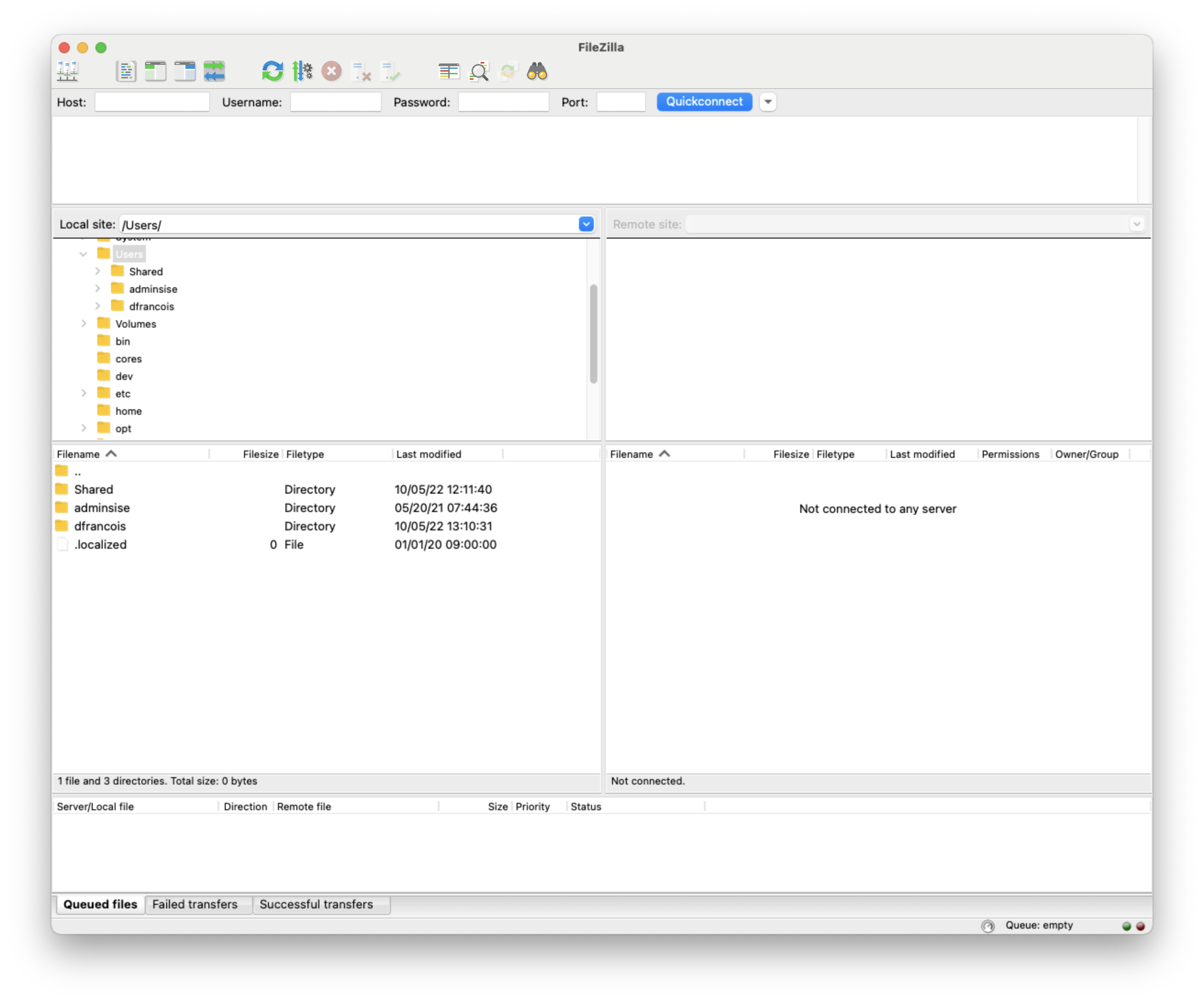
FileZilla is a two-pane graphical file transfer software available for Linux, Mac and Windows.
After you have downloaded and installed it following the instructions on the
FileZilla website, you can connect to a computer by writing the full name of the
server in the Host: text box, your CISM login in the Username: text box,
and your CISM password in the Password: box. Put 22 in the Port: box
and then click “Quickconnect”. FileZilla will ask you whether or not it should
remmember the password and then it will connect.
Cyberduck is another graphical file transfer software available for Mac and Windows. It is also based on the SSH protocol and can be used to transfer files to and from the CISM servers.